
HIMA CPU 01 Controller Module
Storage and Execution: Stores the operating system (OS) and user programs, performs core functions such as logical operations, I/O signal processing, and security self checks.
Communication management: Implement secure/non secure communication with programming and debugging tools (PADT), remote I/O, and external systems through Ethernet and fieldbus interfaces.
Status monitoring: Real time monitoring of power supply voltage, operating temperature, hardware faults, and automatic triggering of safety response in case of abnormalities (such as entering STOP state).
Installation and configuration process
1. Installation steps
(1) Basic installation (inside the rack)
In the power-off state, insert the module along the upper and lower rails of the rack, align it with the backplane slot, and press the front end board until the buckle "clicks" to lock.
Secure the module with screws on both sides of the front panel to ensure a secure installation.
Connection cables: Ethernet cable (RJ-45), fieldbus cable (D-sub, requiring sub module connection), power cord (powered by power module, no direct wiring required).
(2) Zone 2 Special Installation
Additional requirements: The enclosure protection level should be ≥ IP54 to ensure heat dissipation (the basic power consumption of the module is 6.5W, and it can reach 12W when equipped with a communication submodule).
Power requirements: PELV/SILV grade safety isolation power supply must be used, in compliance with IEC 61131-2 standard.
Label pasting: The shell needs to be pasted with ATEX compliant labels, and the module comes with an "Ex113GExnA II T4X" label.
2. Configuration process
(1) Tool selection and preliminary preparation
Confirm module OS version: Select the corresponding programming tool (ELOP II Factory/SILworX) based on the model label or front-end LED.
Reference documents: HIMatrix system manual (HI 800 191 E), safety manual (HI 800 023 E), and programming tool help documentation are required.
(2) Core configuration steps
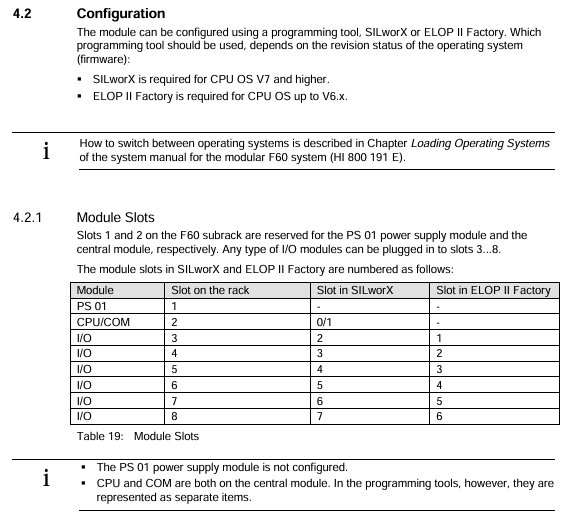
Hardware Mapping: Create a project in the programming tool and configure the CPU module (Slot 2) and I/O module (Slot 3~8) according to the rack slot. There is a slight difference in slot numbers between SILworX and ELOP II Factory (refer to the table below). |Rack slot | SILworX slot number | ELOP II Factory slot number | Module type | | --- | --- | --- | --- | | | | | | 1 | - | PS 01 power module (no configuration required) | | 2 | 0 (CPU)/1 (COM) | - | CPU/communication module (integrated) | | | 3 | 2 | 1 | I/O module | | 4 | 3 | 2 | I/O module | | | 5~8 | 4~7 | 3~6 | I/O module|
Network configuration: Set the IP address (default 192.168.0.99) and subnet mask to ensure consistency with the PADT (programming computer) network segment; If modifications are required, they can be restored to default values through programming tools or reset functions.
Programming and downloading: Write user programs using IEC 61131-3 standard languages such as Function Block Diagram (FBD), compile them, and download them to the module Flash EPROM.
Security configuration: Set the watchdog time (WDT) and security cycle time according to the security manual, and configure security communication parameters (if applicable).
3. Reset operation (restore default settings)
Applicable scenario: Forgetting administrator account password or IP address conflicts with PADT.
Operation steps:
Disconnect the module power supply and unplug all fieldbus connectors (to avoid interfering with other devices).
Insert a needle shaped insulating material into the reset hole of the front end board, press and hold for ≥ 20 seconds, and at the same time, turn on the power to restart the module.
Reset effect: The IP address is restored to 192.168.0.99, the system ID (SRS) is restored to 6000.0.0, and only the default administrator account (empty password) is activated.
Note: In COM OS versions ≥ 10.42, after resetting, it is necessary to reconfigure the connection parameters and account before downloading the program/OS.
Operation and Diagnosis
1. Running status indication (LED interpretation)
The LED status of the module varies slightly with the CPU OS version, and its core meaning is as follows:
(1) System LED
Meaning of LED color status (CPU OS ≥ V8)
RUN green constantly on and running normally (STOP/RUN status)
RUN green Blinking1 (600ms on/off) is loading a new operating system
RUN green off, non RUN state
ERR red constant light lacks additional function authorization and testing mode
ERR red Blinking1 fault shutdown (hardware/voltage/configuration failure), requiring PADT restart
ERR red goes out without any malfunction
(2) Program LED
STOP (red): Always on=STOP/valid configuration; Blinking=STOP/Invalid configuration.
PROG (yellow): Always on=loading configuration/OS, modifying WDT/safe time/SRS.
Fault (yellow): Blinking=OS damage, invalid configuration, I/O failure.
FORCE (yellow): constantly on=forced function preparation; Flashing=forced function activation.
(3) Communication LED
Ethernet (next to RJ-45): Green=Full Duplex; Yellow=connection is valid; Flashing=data transmission/conflict.
Fieldbus (FB1/FB2): yellow=interface activated; Synchronized flashing=emergency loader activated.
2. Basic operating procedures
(1) Start the process
Confirm that the module is securely installed, the cable connections are correct, and there is no risk of static electricity.
Connect the power module to supply power, and the module will automatically perform LED self-test (all LEDs will briefly light up).
Start the programming tool and establish a communication connection with the module (via IP address).
Download user programs and configuration files to verify the validity of the configuration.
Switch the module to RUN state and confirm normal operation through LED and programming tools.
- OMRON
- ABB
- General Electric
- EMERSON
- Honeywell
- HIMA
- ALSTOM
- Rolls-Royce
- MOTOROLA
- Rockwell
- Siemens
- Woodward
- YOKOGAWA
- FOXBORO
- KOLLMORGEN
- MOOG
- KB
- YAMAHA
- BENDER
- TEKTRONIX
- Westinghouse
- AMAT
- AB
- XYCOM
- Yaskawa
- B&R
- Schneider
- KONGSBERG
- NI
- WATLOW
- ProSoft
- SEW
- ADVANCED
- Reliance
- TRICONEX
- METSO
- MAN
- Advantest
- STUDER
- DANAHER MOTION
- Bently
- Galil
- EATON
- MOLEX
- DEIF
- B&W
- ZYGO
- Aerotech
- DANFOSS
- Beijer
- Moxa
- Rexroth
- Johnson
- WAGO
- TOSHIBA
- BMCM
- SMC
- HITACHI
- HIRSCHMANN
- Application field
- XP POWER
- CTI
- TRICON
- STOBER
- Thinklogical
- Horner Automation
- Meggitt
- Fanuc
- Baldor
- SHINKAWA
- Other Brands
- UniOP
- KUKA
- Iba
- Beckhoff
- ADLINK
-
 Sigmatek MDD111-1 DIAS Drive Axis Module
 -
 Sigmatek DKL042 05-024-042 Terminal Module
 -
 Sigmatek DM822 Control Module
 -
 Sigmatek CDM167 12-008-167-O Module
 -
 Sigmatek TAE151 Touch Display Unit
 -
 Sigmatek DCC041 SLIDES Module 05-700-041-D
 -
 Sigmatek AKM65M-ANC2GBB0 PM Servo Motor
 -
 Sigmatek ETT221 01-230-221 Operator Terminal
 -
 Sigmatek SLIDES DAM 124 Analog Module
 -
Sigmatek AKM31C-ANCNGBB0 Servo Motor
-
 Mannesmann Demag Sigmatek CP626 Central Unit
 -
 SIGMATEK 0332.554.03 Board 371071000154
 -
 SIGMATEK 12-250-021 Base Plate Back Panel CM5V020
 -
 SIGMATEK DM162 S-DIAS Digital Mix Module
 -
 DEMAG ERGOTECH 061 381 66 Sigmatek 9842.243.02 Circuit Board
 -
 SIGMATEK CP313-1 PLC Module
 -
Sigmatek ETV0551-2 VARAN Touch Terminal
-
 Sigmatek SDM 081 FS S-Dias Safety Module
 -
 DEMAG 05-250-023 Ergotech Motherboard with Sigmatek TMS012
 -
Sigmatek CM5V020 12-250-023-K Wiring Base
-
 Sigma Tek 5000B-37 Attitude Gyro Indicator
 -
 Sigmatek SDD120-2 DIAS Drive
 -
 Sigmatek CME221 Memory Module
 -
 Sigmatek DCP640 DIAS Central Unit
 -
 Sigmatek STO040 Safety Output Module
 -
Sigmatek CET281 Control Panel
-
 Sigmatek CIPC LX800 Demag NC5 CPU
 -
 Sigmatek DKL093 05-024-093 Terminal Module
 -
 Sigmatek AI088 20-009-088 Analog Input Module
 -
Sigmatek CAI888 Analog Input Module
-
SIGMATEK CCA021 12-025-021 Analog Output Module
-
SIGMATEK 1104.579.05 Control Module
-
SIGMATEK SDI100 Digital Input Module
-
 SIGMATEK C-IPC 256MB LX800 Compact Dias
 -
 SIGMATEK 9423.090.02 Control Module
 -
SIGMATEK C-IPC 256 Power Supply 148498
-
 SIGMATEK CAI025 Analog Input Module
 -
 SIGMATEK CTO166 Digital Output Module
 -
 SIGMATEK CP112 20-004-112 Processor Module
 -
SIGMATEK CAI887 12-009-887 Safety Module
-
 Sigma-Tek 4000B-31 Directional Gyro 1U262-002-42
 -
Sigmatek C-IPC 256MB LX800 IPC Controller
-
Sigmatek C-IPC 01-450-031 Industrial PC LX800
-
Sigmatek C-IPC 256 Industrial PC Controller
-
Sigmatek CCP-531 PLC Processor Module
-
Sigmatek CDI163 Digital Input Module
-
 Sigmatek ETV0501 VARAN Terminal 12-230-0501
 -
 Sigmatek CTMS020 C-DIAS Technology Module
 -
 Sigmatek CIV512 VARAN Switch Module
 -
 Sigmatek HU011 20-080-011 Interface Module
 -
SIGMATEK SLIDES DAM 124 Module
-
 SIGMATEK C-IPC 161 01-450-161L Industrial PC
 -
SIGMATEK C-IPC 128MB VIA 733MHz 01-450-024-K
-
 SIGMATEK 12-780-012 R8-IPC Geode LX800 Module
 -
SIGMATEK CAM124 Analog Module
-
 SIGMATEK S1 032-8AF61-R4 EZ Servo Motor
 -
 SIGMATEK CTO163 Digital Output Module
 -
 SIGMATEK CCP082 12-004-082 Processor Module
 -
 SIGMATEK CRCH081 C-DIAS Temperature Module
 -
 SIGMATEK PC322-K 01-310-322-K Industrial PC
 -
SIGMATEK SDD310-2 Servo Drive
-
 SIGMATEK AI084 Analog Input Module
 -
SIGMATEK CRCH081 12-752-081 Temperature Module
-
Sigma-Tek 5000L-4 Attitude Gyro 1U284-001-3
-
 SIGMATEK CM5V020 12-250-023-K Wiring Module
 -
Sigma-Tek 4000H-6 Directional Gyro IU262-035-7
-
 SIGMATEK Dias DCP160 05-004-160 Processor Module
 -
SIGMATEK 0147.395.02 Control Module
-
SIGMATEK A1084 Control Module
-
SIGMATEK DI200 20-006-2000 Digital Input Module
-
Sigmatek DNC115 Encoder Module
-
 Sigmatek DAM122 05-017-122 Analog Module
 -
Sigmatek 9802.289.01 Control Board TA71 Display
-
Sigmatek TO127 20-007-127 Digital Output Module
-
Sigmatek DNC031 05-011-031 Digital Module
-
Sigmatek VI022 20-003-022 Interface Module
-
Sigmatek CAI085 Analog Input Module
-
 Sigmatek CP111 S-DIAS CPU Module
 -
Sigmatek CTMS030 Krauss Maffei Module
-
 Sigmatek CAM123 Control Module
 -
 Sigmatek TAE732-P 01-240-732-P Touch Display Unit
 -
Sigmatek MDM021 Digital Mixed Module
-
Sigmatek DCP642 DIAS Central Unit
-
 Sigmatek CST022 12-014-022 C-DIAS Module
 -
 Sigmatek SRO021 20-893-021 Safety Relay Output
 -
 Krauss Maffei MC5 Control System Sigmatek
 -
 Sigmatek DC061 Module 18-24VDC 300mA
 -
 Herrmann EVT0855 Ultrasonic Welder Touch Panel
 -
Sigmatek CIV521 Control Module 1.4A 2W
-
Sigmatek DDI61 05-006-161 Digital Input Module
-
SIGMATEK ETT312-E Touch Terminal 01-230-312
-
Cessna S3326-1 Sigma Tek 5000B-67 Gyro 1U149-015-9
-
SIGMATEK PS101 Power Supply Module
-
SIGMATEK 0332.554.03 Control Module 371071000154
-
 SIGMATEK ETT312-E Touch Terminal 01-230-312
 -
SIGMATEK CDM163 Control Module
-
 SIGMATEK VSV046 16-023-046 Module
 -
SIGMATEK AM221 20-017-221 Analog Module
-
SIGMATEK CTS051 12-053-051 Control Module
-
SIGMATEK AM221 20-017-221 Analog Module
-
Sigmatek CSDI161 12-891-161 Safety Input Module
-
Sigma Tek 4000C-1 Directional Gyro Indicator
-
Sigmatek ETV0501 12-230-0501 VARAN Terminal
-
Sigmatek DDM165 SLIDES Module
-
Sigmatek N100 20-011-100 Control Module
-
Sigmatek AKM54K-ANC2R-B0 PM Servo Motor
-
Sigmatek CTO166 Digital Output Module
-
Sigmatek CP212-K 20-004-212-K CPU Module
-
Sigmatek CDI161 Digital Input Module
-
Sigmatek DCC080 05-700-080-2 Control Module
-
 SIGMATEK SCP011 S-DIAS Safety CPU
 -
SIGMATEK SCP011 S-DIAS Safety CPU
-
SIGMATEK SRO022 Relay Output Module
-
SIGMATEK MDD 121 Drive Axis Module
-
SIGMATEK DSI021 SLIDES Siemens Interface
-
SIGMATEK DIAS DCP161 Module 05-004-161
-
 Sigmatek ETT312 Built-in Touch Terminal
 -
SIGMATEK DCP 643 DIAS Controller System
-
SIGMATEK CIO021 Multi I/O Module
-
SIGMATEK CTMS020 Control Module
-
 Sigmatek CME 221 Memory Module
 -
Sigmatek 0420.615.01 Control Board
-
Sigmatek CP111 20-004-111 CPU Module
-
Sigmatek 9405.065.03 Control Board
-
Sigmatek ETEK 01-450-032-K C-IPC 256MB Industrial PC
-
Sigmatek CTO163 12-007-163 Safety Output Module
-
Sigmatek TO081 20-007-081 Digital Output Module
-
 Sigmatek SI021 20-022-021 Safety Input Module


