
WOODWARD MicroNet TMR ® OpView of 5009 Digital Control System ™ Interface Operation Manual
WOODWARD MicroNet TMR 5009 OpView ™ Operating Interface System Application Guide
Introduction
In the field of industrial automation and turbine control, Woodward's MicroNet TMR 5009 digital control system is renowned for its outstanding reliability and precise control performance. As an important component of the system, OpView ™ The Operator Interface provides an intuitive and efficient touchscreen workstation, allowing operators to remotely monitor system status, adjust control parameters, and execute running commands. This article will be based on the MicroNet TMR 5009 Digital Control System Volume 4 OpView ™ The content of the Interface Manual (manual number 85580V4, revised J) provides a comprehensive analysis of the functions, installation, operation, and safety precautions of the OpView interface, aiming to provide a professional and detailed application guide for engineering and technical personnel, system maintenance personnel, and operators.
1 OpView ™ Overview of the operating interface
1.1 System positioning and functions
OpView ™ The operating interface is a touch screen workstation specifically designed for the Woodward MicroNet TMR 5009 digital speed controller, with the following core functions:
Status monitoring: Real time display of turbine operating parameters, start-up sequence status, generator information, analog input/output, discrete input/output status, etc.
Control operation: Allow operators to adjust control settings, start stop functions, perform valve calibration, overspeed testing, etc.
Alarm and event recording: Provides timestamp alarm and trip records, supports connecting to a serial printer to output hard copies.
Dynamic adjustment and trend analysis: Supports PID parameter adjustment and provides real-time trend charts for system debugging and optimization.
1.2 Compatible models
The OpView hardware models covered in the manual include:
8236-354: Color screen, 25 pin Com B port
8236-513: Color screen, 25 pin Com B port, suitable for Class I, Division 2 hazardous areas
8236-616: Color screen, 25 pin Com B port
8236-617: Color screen, 25 pin Com B port, suitable for Class I, Division 2 hazardous areas
8236-700: Color screen, 9-pin Com B port
8236-701: Color screen, 9-pin Com B port, suitable for Class I, Division 2 hazardous areas
8236-1001: Color screen, 9-pin Com B port

Safety and compliance requirements
2.1 Safety Warning Level
The manual clearly defines the following safety warning levels, which must be strictly followed before operation:
Danger (DANGER): Refers to the risk of death or serious injury if not avoided.
Warning: Indicates that failure to avoid may result in death or serious injury.
CAUTION: Indicates that if not avoided, it may result in minor or moderate injury.
NOTICE: Indicates possible property damage (including damage to control equipment).
Important: Indicates operational skills or maintenance recommendations.
2.2 Key safety measures
Overspeed protection: The turbine must be equipped with an overspeed trip device independent of the control system to prevent personnel injury or equipment damage caused by overspeed operation.
Personal protective equipment (PPE): Appropriate protective equipment must be worn during operation, such as goggles, hearing protection, helmets, gloves, safety boots, etc.
Electrostatic protection: Electronic control components are sensitive to static electricity, and must release body static electricity by contacting a grounded surface before operation to avoid direct contact with circuit board components.
Explosive hazardous environment: Some models (such as when installing F/T relay modules) are not suitable for Class I, Division 2 hazardous areas and must be used in ordinary or non hazardous areas.
2.3 Compliance Statement
Applicability to Hazardous Areas: Some models (such as 8236-513, 8236-617, 8236-701, 8236-703) are suitable for Class I, Division 2, Groups A, B, C, D or non hazardous areas.
Wiring requirements: On site wiring must be at least 75 ° C rated temperature, and special attention should be paid when the ambient temperature exceeds 50 ° C.
CE Mark Compliance: To comply with the European Low Voltage Directive (LVD), the maximum external circuit voltage limit for discrete input and relay output circuits is 18-32 Vdc.
Installation and Configuration
3.1 Mechanical Installation
Installation environment: OpView is designed for panel installation, with a protection level of NEMA 4 and a working temperature range of 0 to 50 ° C (32 to 122 ° F).
Space requirement: Leave at least 2 inches (about 5 centimeters) of space around the device to ensure ventilation, and reserve enough space on the back for wiring.
Fixing method: Depending on the model, 12 mounting bolts or 6 mounting clips can be used for fixing.
3.2 Communication Connection
OpView communicates with the J3 port of the SIO module of the 5009 controller through the Com B port and supports the following communication standards:
RS-232: Transmission distance not exceeding 15 meters (50 feet)
RS-422/RS-485: Transmission distance up to 1200 meters (4000 feet)
The communication configuration depends on the OpView model (9-pin or 25 pin interface) and needs to be set through jumpers or DIP switches. The default communication parameters are:
Protocol type: RTU
Equipment number: 1
Baud rate: 19200
Stop position: 1
Checkpoint: None
3.3 Printer Settings
OpView supports connecting printers through parallel ports to output alarm logs. The printer needs to be configured as:
Baud rate: 9600
Checkpoint: None
Data bits: 8
Stop position: 1
3.4 Initial Settings
After power on, OpView will perform diagnostic tests for approximately a few minutes. If communication with the 5009 controller fails, it may take up to 20 minutes to display the application interface. It is recommended to set the date and time of OpView when using it for the first time. Please refer to page 14 of the manual for specific steps.
Detailed explanation of the operation interface
4.1 Main Menu
The main menu is the hub for accessing other function screens and includes the following key function buttons:
Local/Remote Switching: Used to enable or disable the remote control panel.
Emergency Shutdown (ESD): Adopting a two-step verification process to prevent misoperation.
Alarm log: Directly access the alarm record interface.
Configure password: After entering the password, you can enter the application manager for advanced settings.
4.2 Core Function Screen
(1) Turbine Start Screen
According to the configuration of the 5009 controller, three startup modes are displayed:
Idle/Rated Mode
No idle mode (manual up/down only)
Auto Start Sequence
This screen provides functions such as startup status display, speed setting adjustment, and valve limiter control.
(2) Turbine Run Screen
Display turbine type and application configuration in a graphical manner, supporting:
Frequency control arm/release
Load sharing enabled/disabled
Synchronizer control
Run time statistics
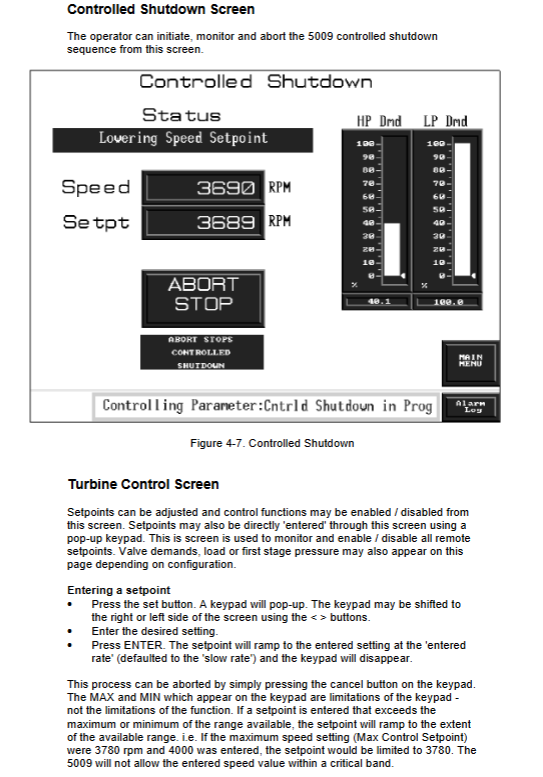
(3) Turbine Control Screen
Allow direct input of set values and input specific numerical values through a pop-up keyboard. Support:
Set value up/down adjustment
Enable/disable remote settings
Valve requirement display
(4) Valve Calibration Screen
After meeting the system license conditions (turbine shutdown, speed below 1000 RPM) and entering the calibration password, valve calibration can be performed. Support:
Valve position adjustment (fast/slow)
Minimum/maximum mA setting
Calibration parameter saving
(5) PID Control Screen
Display all configured PID outputs and set values in the form of a bar chart for easy observation of the interaction between various control loops.
(6) Trend&Dynamics Screens
Provide a one minute trend chart (sampled per second), supporting:
PID parameter adjustment (proportional, integral, derivative)
Trend resolution adjustment
Dynamic parameter saving
4.3 Alarm Management System
OpView provides complete alarm recording function:
Alarm log: displays current alarms (red with asterisks) and historical alarms.
Alarm confirmation and reset: Manage alarm status through ALM ACK and RESET buttons.
Print output: Supports real-time output of alarm events by connecting to a serial printer.
Alarm History: Stores the last 500 alarm records and cannot be cleared.
Password and permission management
OpView adopts a three-level password permission system to prevent unauthorized access:
SUPVAR level password: 1113, used to access the application manager.
Tuning/valve calibration level password: 1111, used for dynamic adjustment and valve calibration.
5009 user level password: 5009, regular operation permissions.
It is recommended to set the permissions to the 5009 user level during normal operation to protect system security.
Fault diagnosis and maintenance recommendations
6.1 Communication Fault Handling
If the screen displays' LOST COMMUNICATION ', please check:
Is the communication cable connected correctly
Does the port setting of the 5009 controller match the communication parameters of OpView
Does the communication distance exceed the standard limit
6.2 Electrostatic protection measures
Contact the grounding surface before operation to release static electricity
Avoid using plastic, vinyl, or foam materials near circuit boards
Use anti-static packaging bags when replacing circuit boards
6.3 Regular maintenance
Regularly check the reliability of communication connections
Update OpView time and date settings
Backup alarm logs and historical data
- OMRON
- ABB
- General Electric
- EMERSON
- Honeywell
- HIMA
- ALSTOM
- Rolls-Royce
- MOTOROLA
- Rockwell
- Siemens
- Woodward
- YOKOGAWA
- FOXBORO
- KOLLMORGEN
- MOOG
- KB
- YAMAHA
- BENDER
- TEKTRONIX
- Westinghouse
- AMAT
- AB
- XYCOM
- Yaskawa
- B&R
- Schneider
- KONGSBERG
- NI
- WATLOW
- ProSoft
- SEW
- ADVANCED
- Reliance
- TRICONEX
- METSO
- MAN
- Advantest
- STUDER
- DANAHER MOTION
- Bently
- Galil
- EATON
- MOLEX
- DEIF
- B&W
- ZYGO
- Aerotech
- DANFOSS
- Beijer
- Moxa
- Rexroth
- Johnson
- WAGO
- TOSHIBA
- BMCM
- SMC
- HITACHI
- HIRSCHMANN
- Application field
- XP POWER
- CTI
- TRICON
- STOBER
- Thinklogical
- Horner Automation
- Meggitt
- Fanuc
- Baldor
- SHINKAWA
- Other Brands
- UniOP
- KUKA
- Iba
- Beckhoff
- ADLINK
-
 MICRO INNOVATION GF1-10TVB-100 Touch Panel
 -
 MICRO INNOVATION AG WINBLOC CAN-4AI/UI Analog Input Module
 -
 MICRO INNOVATION AG WINBLOC CAN-32DO/0.5A-P-2x16 Output Module
 -
 MICRO INNOVATION AG CAN-32DI/P-2X16 8551224182 Input Module
 -
 MICRO INNOVATION MK2-230/232-57 Circuit Board 85 28 200000
 -
 MICRO INNOVATION CAN-BRIDGE 8551224177 CAN Bridge
 -
 Micro Innovation MC2-430-10TVB-1-10 Panel 24VDC
 -
 MICRO INNOVATION MC2-432-57CQB-1-10 HMI Panel
 -
MICRO INNOVATION AG CAN-BRIDGE 85 51 224177 CAN Bridge
-
 MICRO INNOVATION CAN-4AI/UI Analog Input Module
 -
MICRO INNOVATION CAN-32DI/P-2X16 Input Module
-
 SIGMATEK MDD111 09-404-111 Drive Module
 -
 SIGMATEK DVI021 Display Interface Module
 -
 SIGMATEK 00-450-024 C-IPC Processor
 -
 SIGMATEK MDD-111 MDD111 Drive Module
 -
 SIGMATEK ICA011 20-102-011 Interface Module
 -
 SIGMATEK 01-250-010-D NC4Kompakt Control Module
 -
 SIGMATEK CRIF081 12-751-081 Interface Module
 -
 SIGMATEK S1026-8AF61-R4E-Z57 Drive Module
 -
 SIGMATEK 9305.081.02 9227.082.00 Control Module
 -
 Sigma Tek 5000B-36 Attitude Indicator
 -
 SIGMATEK CEZ201 12-051-201-O Counter Module
 -
 SIGMATEK DPS001 Power Supply Module
 -
 SIGMATEK 994 395 01z Via Interface Module
 -
 SIGMATEK PC411-K 01-310-411-K Industrial PC
 -
 SIGMATEK 9816.324.00 Demag NC4 Keyboard
 -
 SIGMATEK ET261 90010C-71 Operator Terminal
 -
 SIGMATEK DDI 164 05-006-164 Input Module
 -
 SIGMATEK CCP 082 C-DIAS Processor Module
 -
SIGMATEK CEZ201 12-051-201-O PLC Module
-
SIGMATEK MDD 1111 06178867 Drive Module
-
SIGMATEK S1 073-6AC61-RE-Y08-Z Drive Module
-
SIGMATEK MDD 111 Drive Module MDD111
-
 SIGMATEK CSDI161 Safety Module 12-891-161
 -
SIGMATEK C-IPC Processor 01-450-024
-
 SIGMATEK DIAS DAM122 Analog Mixing Module
 -
Sigma Tek 5000B-36 Attitude Gyro Indicator
-
 SIGMATEK TMS012 Motherboard Module 05-250-012-T
 -
 SIGMATEK CCP-531 PLC Module
 -
SIGMATEK DIAS DNC4 I/O Module 05-250-011
-
 SIGMATEK AI088 Analog Input Module
 -
 SIGMATEK CEZ201 Counter Module
 -
SIGMATEK CIC011 Industrial Computer Module
-
 SIGMATEK MDM021 Motor Drive Module
 -
 SIGMATEK DTO163 Digital Output Module
 -
SIGMA-TEK 5000B-36 Attitude Gyro
-
SIGMATEK DM161 Digital Input Module
-
SIGMATEK CCP-531 PLC Control Panel
-
 SIGMATEK HZS773 Touch Terminal Operator Panel
 -
SIGMATEK MDP101 3 KVA 45-65Hz Driver
-
 SIGMATEK ETV1251 Touch Panel 12-230-1251
 -
SIGMATEK CIO021 Safety Module 12-013-021
-
Sigma Tek 4000H-5 Directional Gyro
-
 SIGMATEK TAE531 I/O Module 01-240-531
 -
 SIGMATEK DAI081 Input Module 05-009-081
 -
 SIGMATEK DCP640 Drive Control Module
 -
 SIGMATEK DCP643 Slides Module A6-29
 -
SIGMATEK SCP011 Safety Module 20-890-011
-
SIGMATEK DDM 164-D Slides Module
-
 SIGMATEK C-IPC Processor 146267
 -
SIGMATEK ET3200 Display Screen
-
SIGMATEK CEZ221 C-DIAS Mixing Module
-
 SIGMATEK SDD120-2 DIAS Servo Drive
 -
SIGMATEK DIP011 05-058-011 Module
-
 Sigmatek DEC181 I/O Module
 -
SIGMATEK DCP640 DIAS Central Unit
-
SIGMATEK 00-450-024 C-IPC Industrial Computer
-
SIGMATEK AKM32C-ANCNR-B0 Servomotor
-
SIGMATEK DVI021 DIAS Power Module
-
SIGMATEK CTS051 12-053-051 Control Module
-
 SIGMATEK CTS022 Control Module
 -
 Sigmatek 01-250-010-D NC4Kompakt V2.1 Module
 -
 SIGMATEK Control Keyboard 01-285-042 Interface
 -
 SIGMATEK TO081 20-007-081 Digital Output Module
 -
 Sigmatek AKM73Q-ANCNGBB0 7.07kW Servo Motor
 -
Sigmatek DIP012 Demag 07024165 Processor Module
-
 SIGMATEK PC 411 Injection Molding Controller
 -
SIGMATEK CEZ201 12-051-201-O Processor Module
-
 SIGMATEK VI021 20-003-021 Digital Input Module
 -
SIGMATEK Computer C-IPC 144904 Industrial PC
-
 SIGMATEK 9307.083.01 9305.081.02 Industrial Module
 -
 SIGMATEK AI075 Analog Input Module
 -
 SIGMATEK HGT834-W Teaching Pendant
 -
Sigmatek CDI161 Digital Input Module
-
 SIGMATEK HGT834 Teaching Pendant
 -
 SIGMATEK CEZ201 12-051-201-O Module
 -
SIGMATEK Demag 9617.067.03 9708.244.00 Module
-
 SIGMATEK SCP010 Safety CPU Module
 -
SIGMATEK N100 20-011-100 Module
-
 SIGMATEK CNC 031 Positioning Output Module
 -
 Sigmatek 01-355-016 Control Module
 -
 Sigmatek MDM021 Digital Mixed Module
 -
Sigmatek DAI411 05-020-411 Analog Module
-
Attitude Gyro 1U367-232-2 Aircraft Instrument
-
 Sigma-Tek 5000B-36 Attitude Gyro 23-501-06-16
 -
Sigmatek HGT834-W Injection Molding Teach Pendant
-
Sigma Tek 5000EG Attitude Gyro 1U670-003-12
-
Sigmatek HGT834-W Teach Pendant
-
Sigmatek DEE011 05-068-011 Module
-
Sigmatek DIAS DCP643 Central Processing Unit
-
Sigmatek MDD111-1 DIAS Drive Axis Module
-
 Sigmatek DKL042 05-024-042 Terminal Module
 -
Sigmatek DM822 Control Module
-
Sigmatek CDM167 12-008-167-O Module
-
Sigmatek TAE151 Touch Display Unit
-
 Sigmatek DCC041 SLIDES Module 05-700-041-D
 -
Sigmatek AKM65M-ANC2GBB0 PM Servo Motor
-
Sigmatek ETT221 01-230-221 Operator Terminal
-
Sigmatek SLIDES DAM 124 Analog Module
-
Sigmatek AKM31C-ANCNGBB0 Servo Motor
-
Mannesmann Demag Sigmatek CP626 Central Unit
-
SIGMATEK 0332.554.03 Board 371071000154
-
 SIGMATEK 12-250-021 Base Plate Back Panel CM5V020
 -
SIGMATEK DM162 S-DIAS Digital Mix Module
-
DEMAG ERGOTECH 061 381 66 Sigmatek 9842.243.02 Circuit Board
-
 SIGMATEK CP313-1 PLC Module
 -
Sigmatek ETV0551-2 VARAN Touch Terminal
-
 Sigmatek SDM 081 FS S-Dias Safety Module
 -
 DEMAG 05-250-023 Ergotech Motherboard with Sigmatek TMS012
 -
Sigmatek CM5V020 12-250-023-K Wiring Base
-
Sigma Tek 5000B-37 Attitude Gyro Indicator
-
Sigmatek SDD120-2 DIAS Drive
-
 Sigmatek CME221 Memory Module
 -
Sigmatek DCP640 DIAS Central Unit
-
 Sigmatek STO040 Safety Output Module
 -
Sigmatek CET281 Control Panel
-
Sigmatek CIPC LX800 Demag NC5 CPU
-
Sigmatek DKL093 05-024-093 Terminal Module


