
Hirschmann GUI Graphical User Interface Industrial ETHERNET (Gigabit-)Switch RS20/RS30/RS40, MS20/MS30
Core objective: To provide technical personnel with a complete operation guide for equipment configuration, monitoring, and diagnosis, ensuring network reliability, security, and compatibility in industrial scenarios.
Supporting resources: It needs to be used in conjunction with installation manuals, basic configuration manuals, redundant configuration manuals, etc., and supports the integration of HiVision network management software.
Hirschmann GUI Graphical User Interface Industrial ETHERNET (Gigabit-)Switch RS20/RS30/RS40, MS20/MS30
Document Overview
Document positioning: Official reference manual for Hirschmann Industrial Ethernet Switch graphical user interface (GUI) and command-line interface (CLI), applicable to RS20/RS30/RS40, MS20/MS30 and other series devices, version L2E Rel.9.0 (released in February 2015).
Core objective: To provide technical personnel with a complete operation guide for equipment configuration, monitoring, and diagnosis, ensuring network reliability, security, and compatibility in industrial scenarios.
Supporting resources: It needs to be used in conjunction with installation manuals, basic configuration manuals, redundant configuration manuals, etc., and supports the integration of HiVision network management software.
Basic configuration (IP/system information)
1. GUI operation steps
Key settings for functional operation path
Configure IP address basic settings ->select "Local" network mode, enter IP address, subnet mask, gateway; VLAN ID default 1 (0 means all VLANs are accessible)
Modify system information basic settings ->System input system name (PROFINET scene only includes letters/numbers/hyphens/dots), location, and contact person; Set temperature threshold (default upper and lower limits adapted to industrial environments)
Save Configuration Basic Settings → Load/Save Select "Save to Device" or "Save to PC (XML/financial format)", click "Set" to confirm
Restore factory settings to basic settings → Load/Save → Delete Select "Current Configuration", click "Delete Configuration", restart the device to take effect
2. CLI operation commands
Example of Function Command (Mode)
Configure IP address privilege execution mode: network parms <ip> <mask> [gw] network parms 192.168.1.100 255.255.255.0 192.168.1.1
View system information privilege execution mode: show sysinfo displays software version, MAC address, CPU utilization, port status, etc
Save configuration privilege execution mode: copy running config startup config Save current configuration to non-volatile memory, restart without loss
Restore factory settings privilege execution mode: clear config factory. After confirmation, delete all configurations (including IP addresses) and reconfigure them
VLAN configuration (IEEE 802.1Q)
1. GUI operation steps
Key settings for functional operation path
Create static VLAN switch → VLAN → Static VLAN Input VLAN ID (1-4042) and name (up to 32 characters); Port selection "T (tagged)" or "U (untagged)"
Configure port VLAN attribute exchange → VLAN → default port VLAN ID 1; Allow frame type selection of 'admitAll' (default); Disable inbound filtering (required for HIPER Ring scenarios)
View VLAN status exchange → VLAN → Current VLAN View port members, tag modes, and creation times for all VLANs
2. CLI operation commands
Example of Function Command (Mode)
Enter VLAN database mode privilege execution mode: VLAN database-
Create VLAN database mode: VLAN<id>VLAN 10 (Create VLAN 10)
Naming VLAN VLAN database schema: VLAN name<id><name>VLAN name 10 Production (naming VLAN 10 as "Production")
Configure port VLAN member interface configuration mode: VLAN participation include<id>interface 1/1 → VLAN participation include 10 (port 1/1 joins VLAN 10)
Configure port label mode interface configuration mode: VLAN tagging<id>interface 1/1 → VLAN tagging 10 (port 1/1 sends VLAN 10 frames with labels)
View VLAN configuration privilege execution mode: show VLAN brief displays the IDs, names, and types of all VLANs
Redundant configuration (HIPER Ring/MRP Ring)
1. HIPER Ring configuration
Operation method steps/command key parameters
GUI redundancy → ring network redundancy → select "HIPER Ring" ring port and choose 2 physical ports (such as 1/1, 1/2); Select "Standard" (480ms) or "Acceleration" (280ms) as the recovery mode; Enable Environmental Manager
CLI global configuration mode: hip ring → hip ring port primary<slot/port>→ hip ring port secondary<slot/port>→ hip ring recovery delay standard hip ring port primary 1/1 → hip ring port secondary 1/2 (set 1/1 and 1/2 as ring ports)
2. MRP Ring configuration
Operation method steps/command key parameters
GUI redundancy → ring network redundancy → select "MRP Ring" ring port and choose 2 physical ports; Set VLAN ID to>0 (bind specific VLAN); Select a recovery time of 200ms/500ms; Enable Environmental Manager
CLI global configuration mode: mrp new domain → mrp current domain<domain>→ mrp port<slot/port>ring port mrp new domain 1 → mrp current domain 1 → mrp port 1/1 ring port (port 1/1 is set as MRP ring port)
Port security configuration (MAC/IP binding)
1. GUI operation steps
Key settings for functional operation path
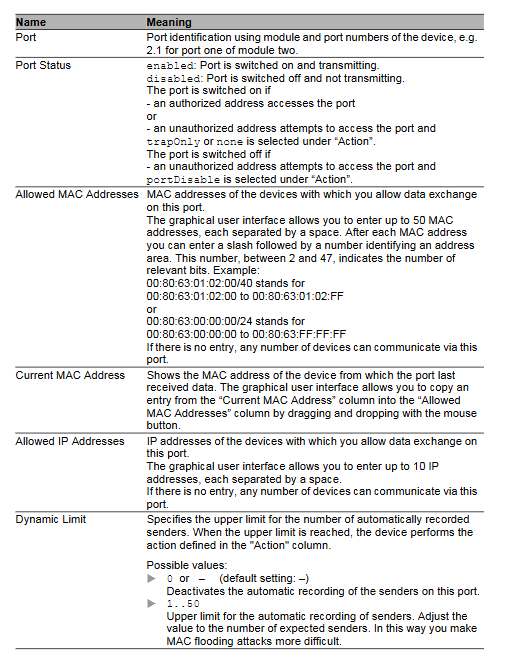
MAC based Port Security ->Port Security ->Configure and select "MAC Based" Port Allow MAC addresses: Enter up to 50 MAC addresses (supports address ranges, such as 00:80:63:00:00:00/24); Dynamically limit 1-50 automatic learning addresses
IP based port security → Port security → Configuration selection "IP based" port allows IP addresses: enter up to 10 IPs; relies on ARP to resolve MAC, ensuring that the terminal device is online
Violation action setting security ->Port security ->Select "trapOnly" (alert), "portDisable" (disable port), or "autoDisable" (reset according to diagnostic configuration) from the port table
2. CLI operation commands
Example of Function Command (Mode)
Enable MAC based port security global configuration mode: port sec mode MAC based-
Binding MAC address to port interface configuration mode: port sec allowed mac add<mac>interface 1/1 → port sec allowed mac add 00:11:22:33:44:55 (binding MAC to port 1/1)
Binding IP address to port interface configuration mode: port sec allowed ip add<ip>interface 1/1 → port sec allowed ip add 192.168.1.200 (binding IP to port 1/1)
Set violation action interface configuration mode: port sec action<action>interface 1/1 → port sec action portDisable (disable port 1/1 when violating)
View port security status privilege execution mode: show port sec port<slot/port>show port sec port 1/1 (view the security configuration of port 1/1)
QoS/Priority Configuration
1. GUI operation steps
Key settings for functional operation path
Global Trust Mode QoS/Priority → Select "trustDot1p" (Trust VLAN Priority) or "trustIpDscp" (Trust IP DSCP) globally; Set the priority of management messages to 6-7 (to ensure the management channel)
Port priority QoS/priority → Port configuration Port priority is set to 0-7 (with 7 being the highest), automatically mapped to 4 traffic classes
802.1D/p mapping QoS/priority → 802.1D/p mapping VLAN priority 0-7 to traffic class 0-3 (e.g. priority 6 → traffic class 3, adapted to voice services)
2. CLI operation commands
Example of Function Command (Mode)
Set global trust mode Global configuration mode: classofservice trust<mode>classofservice trust trustDot1p (trust VLAN priority)
Configure port priority interface configuration mode: VLAN priority<priority>interface 1/1 → VLAN priority 7 (port 1/1 priority is set to 7)
Configure DSCP mapping global configuration mode: classofservice ip-dscp-mapping <<dscp> <trafficclass> classofservice ip-dscp-mapping 46 3(DSCP 46 → Traffic category 3, adapted to EF business)
View QoS configuration privilege execution mode: show classofservice trust displays the current trust mode and mapping rules
Time synchronization configuration (SNTP/PTP)
1. SNTP configuration
Operation method steps/command key parameters
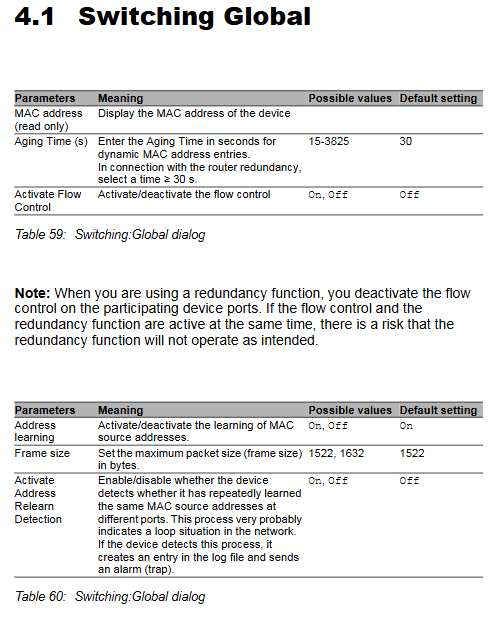
GUI time → SNTP configuration enables SNTP client; Enter the NTP server address for the main server IP; Request interval of 30 seconds (default); Set the broadcast to 'On'
CLI global configuration mode: sntp operation on → sntp client server primary<ip>sntp operation on → sntp client server primary 210.72.145.44 (configure national time service center server)
2. PTP configuration (IEEE 1588)
Operation method steps/command key parameters
GUI time → PTP → global mode selection "v2 binary lock"; Synchronization threshold of 30ns (default); Enable PTP transmission and reception on the port
CLI global configuration mode: ptp mode v2 binary lock → ptp port<slot/port>enable ptp mode v2 binary lock → ptp port 1/1 enable (port 1/1 enables PTP)
Diagnostic tool (port mirroring/logging)
1. Port mirroring configuration
Operation method steps/command key parameters
GUI diagnosis ->Port image source port selection - Select the ports to be monitored (up to 8); Select the monitoring port (idle port) as the destination port; Set the operation to 'On'
CLI global configuration mode: monitor session 1 source interface<slot/port>→ monitor session 1 destination interface<slot/port>→ monitor session 1 mode enable monitor session 1 source interface 1/1-1/8 → monitor session 1 destination interface 1/9 → monitor session 1 mode enable (monitor port traffic from 1/1-1/8 to 1/9)
2. Log viewing
Operation method steps/command instructions
GUI diagnosis → Syslog/diagnosis → Trap log to view system event and alarm logs; Support exporting to PC
CLI privileged execution mode: show logging traplogs displays all Trap logs (including timestamps and event descriptions)
- OMRON
- ABB
- General Electric
- EMERSON
- Honeywell
- HIMA
- ALSTOM
- Rolls-Royce
- MOTOROLA
- Rockwell
- Siemens
- Woodward
- YOKOGAWA
- FOXBORO
- KOLLMORGEN
- MOOG
- KB
- YAMAHA
- BENDER
- TEKTRONIX
- Westinghouse
- AMAT
- AB
- XYCOM
- Yaskawa
- B&R
- Schneider
- KONGSBERG
- NI
- WATLOW
- ProSoft
- SEW
- ADVANCED
- Reliance
- TRICONEX
- METSO
- MAN
- Advantest
- STUDER
- DANAHER MOTION
- Bently
- Galil
- EATON
- MOLEX
- DEIF
- B&W
- ZYGO
- Aerotech
- DANFOSS
- Beijer
- Moxa
- Rexroth
- Johnson
- WAGO
- TOSHIBA
- BMCM
- SMC
- HITACHI
- HIRSCHMANN
- Application field
- XP POWER
- CTI
- TRICON
- STOBER
- Thinklogical
- Horner Automation
- Meggitt
- Fanuc
- Baldor
- SHINKAWA
- Other Brands
- UniOP
- KUKA
- Iba
- Beckhoff
- ADLINK
-
 Sigmatek MDD111-1 DIAS Drive Axis Module
 -
 Sigmatek DKL042 05-024-042 Terminal Module
 -
 Sigmatek DM822 Control Module
 -
 Sigmatek CDM167 12-008-167-O Module
 -
 Sigmatek TAE151 Touch Display Unit
 -
 Sigmatek DCC041 SLIDES Module 05-700-041-D
 -
 Sigmatek AKM65M-ANC2GBB0 PM Servo Motor
 -
 Sigmatek ETT221 01-230-221 Operator Terminal
 -
 Sigmatek SLIDES DAM 124 Analog Module
 -
Sigmatek AKM31C-ANCNGBB0 Servo Motor
-
 Mannesmann Demag Sigmatek CP626 Central Unit
 -
 SIGMATEK 0332.554.03 Board 371071000154
 -
 SIGMATEK 12-250-021 Base Plate Back Panel CM5V020
 -
 SIGMATEK DM162 S-DIAS Digital Mix Module
 -
 DEMAG ERGOTECH 061 381 66 Sigmatek 9842.243.02 Circuit Board
 -
 SIGMATEK CP313-1 PLC Module
 -
Sigmatek ETV0551-2 VARAN Touch Terminal
-
 Sigmatek SDM 081 FS S-Dias Safety Module
 -
 DEMAG 05-250-023 Ergotech Motherboard with Sigmatek TMS012
 -
Sigmatek CM5V020 12-250-023-K Wiring Base
-
 Sigma Tek 5000B-37 Attitude Gyro Indicator
 -
 Sigmatek SDD120-2 DIAS Drive
 -
 Sigmatek CME221 Memory Module
 -
 Sigmatek DCP640 DIAS Central Unit
 -
 Sigmatek STO040 Safety Output Module
 -
Sigmatek CET281 Control Panel
-
 Sigmatek CIPC LX800 Demag NC5 CPU
 -
 Sigmatek DKL093 05-024-093 Terminal Module
 -
 Sigmatek AI088 20-009-088 Analog Input Module
 -
Sigmatek CAI888 Analog Input Module
-
SIGMATEK CCA021 12-025-021 Analog Output Module
-
SIGMATEK 1104.579.05 Control Module
-
SIGMATEK SDI100 Digital Input Module
-
 SIGMATEK C-IPC 256MB LX800 Compact Dias
 -
 SIGMATEK 9423.090.02 Control Module
 -
SIGMATEK C-IPC 256 Power Supply 148498
-
 SIGMATEK CAI025 Analog Input Module
 -
 SIGMATEK CTO166 Digital Output Module
 -
 SIGMATEK CP112 20-004-112 Processor Module
 -
SIGMATEK CAI887 12-009-887 Safety Module
-
 Sigma-Tek 4000B-31 Directional Gyro 1U262-002-42
 -
Sigmatek C-IPC 256MB LX800 IPC Controller
-
Sigmatek C-IPC 01-450-031 Industrial PC LX800
-
Sigmatek C-IPC 256 Industrial PC Controller
-
Sigmatek CCP-531 PLC Processor Module
-
Sigmatek CDI163 Digital Input Module
-
 Sigmatek ETV0501 VARAN Terminal 12-230-0501
 -
 Sigmatek CTMS020 C-DIAS Technology Module
 -
 Sigmatek CIV512 VARAN Switch Module
 -
 Sigmatek HU011 20-080-011 Interface Module
 -
SIGMATEK SLIDES DAM 124 Module
-
 SIGMATEK C-IPC 161 01-450-161L Industrial PC
 -
SIGMATEK C-IPC 128MB VIA 733MHz 01-450-024-K
-
 SIGMATEK 12-780-012 R8-IPC Geode LX800 Module
 -
SIGMATEK CAM124 Analog Module
-
 SIGMATEK S1 032-8AF61-R4 EZ Servo Motor
 -
 SIGMATEK CTO163 Digital Output Module
 -
 SIGMATEK CCP082 12-004-082 Processor Module
 -
 SIGMATEK CRCH081 C-DIAS Temperature Module
 -
 SIGMATEK PC322-K 01-310-322-K Industrial PC
 -
SIGMATEK SDD310-2 Servo Drive
-
 SIGMATEK AI084 Analog Input Module
 -
SIGMATEK CRCH081 12-752-081 Temperature Module
-
Sigma-Tek 5000L-4 Attitude Gyro 1U284-001-3
-
 SIGMATEK CM5V020 12-250-023-K Wiring Module
 -
Sigma-Tek 4000H-6 Directional Gyro IU262-035-7
-
 SIGMATEK Dias DCP160 05-004-160 Processor Module
 -
SIGMATEK 0147.395.02 Control Module
-
SIGMATEK A1084 Control Module
-
SIGMATEK DI200 20-006-2000 Digital Input Module
-
Sigmatek DNC115 Encoder Module
-
 Sigmatek DAM122 05-017-122 Analog Module
 -
Sigmatek 9802.289.01 Control Board TA71 Display
-
Sigmatek TO127 20-007-127 Digital Output Module
-
Sigmatek DNC031 05-011-031 Digital Module
-
Sigmatek VI022 20-003-022 Interface Module
-
Sigmatek CAI085 Analog Input Module
-
 Sigmatek CP111 S-DIAS CPU Module
 -
Sigmatek CTMS030 Krauss Maffei Module
-
 Sigmatek CAM123 Control Module
 -
 Sigmatek TAE732-P 01-240-732-P Touch Display Unit
 -
Sigmatek MDM021 Digital Mixed Module
-
Sigmatek DCP642 DIAS Central Unit
-
 Sigmatek CST022 12-014-022 C-DIAS Module
 -
 Sigmatek SRO021 20-893-021 Safety Relay Output
 -
 Krauss Maffei MC5 Control System Sigmatek
 -
 Sigmatek DC061 Module 18-24VDC 300mA
 -
 Herrmann EVT0855 Ultrasonic Welder Touch Panel
 -
Sigmatek CIV521 Control Module 1.4A 2W
-
Sigmatek DDI61 05-006-161 Digital Input Module
-
SIGMATEK ETT312-E Touch Terminal 01-230-312
-
Cessna S3326-1 Sigma Tek 5000B-67 Gyro 1U149-015-9
-
SIGMATEK PS101 Power Supply Module
-
SIGMATEK 0332.554.03 Control Module 371071000154
-
 SIGMATEK ETT312-E Touch Terminal 01-230-312
 -
SIGMATEK CDM163 Control Module
-
 SIGMATEK VSV046 16-023-046 Module
 -
SIGMATEK AM221 20-017-221 Analog Module
-
SIGMATEK CTS051 12-053-051 Control Module
-
SIGMATEK AM221 20-017-221 Analog Module
-
Sigmatek CSDI161 12-891-161 Safety Input Module
-
Sigma Tek 4000C-1 Directional Gyro Indicator
-
Sigmatek ETV0501 12-230-0501 VARAN Terminal
-
Sigmatek DDM165 SLIDES Module
-
Sigmatek N100 20-011-100 Control Module
-
Sigmatek AKM54K-ANC2R-B0 PM Servo Motor
-
Sigmatek CTO166 Digital Output Module
-
Sigmatek CP212-K 20-004-212-K CPU Module
-
Sigmatek CDI161 Digital Input Module
-
Sigmatek DCC080 05-700-080-2 Control Module
-
 SIGMATEK SCP011 S-DIAS Safety CPU
 -
SIGMATEK SCP011 S-DIAS Safety CPU
-
SIGMATEK SRO022 Relay Output Module
-
SIGMATEK MDD 121 Drive Axis Module
-
SIGMATEK DSI021 SLIDES Siemens Interface
-
SIGMATEK DIAS DCP161 Module 05-004-161
-
 Sigmatek ETT312 Built-in Touch Terminal
 -
SIGMATEK DCP 643 DIAS Controller System
-
SIGMATEK CIO021 Multi I/O Module
-
SIGMATEK CTMS020 Control Module
-
 Sigmatek CME 221 Memory Module
 -
Sigmatek 0420.615.01 Control Board
-
Sigmatek CP111 20-004-111 CPU Module
-
Sigmatek 9405.065.03 Control Board
-
Sigmatek ETEK 01-450-032-K C-IPC 256MB Industrial PC
-
Sigmatek CTO163 12-007-163 Safety Output Module
-
Sigmatek TO081 20-007-081 Digital Output Module
-
 Sigmatek SI021 20-022-021 Safety Input Module


