
Yokogawa IS8000 Integrated Software ECU Monitoring and Synchronization Function
Yokogawa IS8000 Integrated Software ECU Monitoring and Synchronization Function
Functional positioning
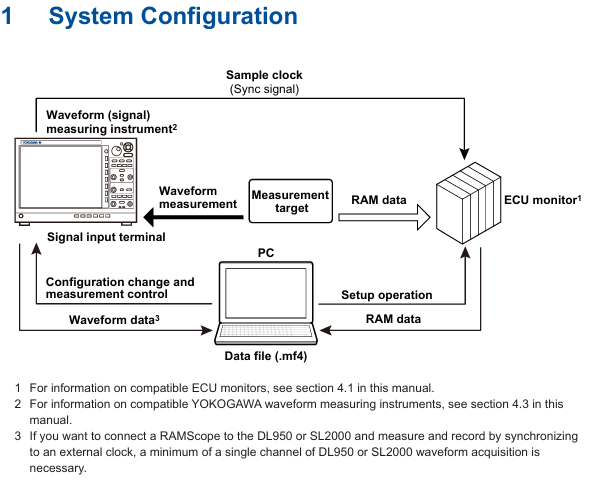
The ECU monitoring synchronization option (/EM1 or - EM1) is an extended function of the IS8000 integrated software, which can synchronize the waveform measured by waveform measuring instruments (such as DL950, SL2000) with the RAM data obtained by the ECU monitor (such as RAMScope) based on the sampling clock for display, supporting joint data analysis.
Core functions and system configuration
(1) Functional principles and core characteristics
Synchronization principle: The sampling clock generated by the waveform measuring instrument is used as a synchronization signal to be transmitted to the ECU monitor, and the measurement data of both parties is loaded through IS8000 software to achieve synchronous display of waveform and RAM data on the PC side.
Core functions:
|Functional Category | Specific Description|
|Synchronized display | ECU monitor RAM data and waveform measurement instrument waveform data are aligned and displayed based on sampling clock|
|Measurement Control | Supports measurement start/stop and recording of start/stop operations for ECU monitors and measuring instruments|
|Data Storage | Automatically merge RAM data with waveform data and save them as. mf4 format files; Support saving symbol definitions as XML files|
|Offline synchronization | Supports offline loading of saved waveform data (. wdf format) and RAM data (. mdf format), achieving timeline synchronization by aligning the "FirstData" points|
(2) System configuration requirements
Hardware compatibility:
ECU monitor: Supports RAMScope GT122, GT170EXG (RAM measurement module only), the latest compatible models need to refer to Yokogawa official website;
Waveform measuring instruments: Yokogawa DL950, SL2000 (require installation of input modules that match the measurement target);
PC communication interface: It needs to support USB (USBTMC, VISA protocol) or Ethernet (VXI-11, HiSLIP protocol), and a dedicated USB driver needs to be installed (which can be downloaded from) https://tmi.yokogawa.com/library/ Download).
PC system requirements: According to the usage scenario, it can be divided into two types of configurations, as follows:
|Usage scenario | CPU requirements | Memory requirements | SSD requirements | Operating system|
|10G Ethernet communication/trigger DAQ (up to 24 hours continuous recording) | Intel Core i7-10700K and above (4 cores, 8 threads, 4.7 GHz+) | 16 GB and above | 512 GB and above (NVMe SSD recommended, read/write speed 3 GB/s+) | Windows 10 64 bit Windows 11|
|1G Ethernet/USB communication/offline analysis | Intel Core i5-10210U and above (4 cores, 8 threads, 4.2 GHz+) | 8 GB and above | 256 GB and above (read/write speed of 400 MB/s+) | Windows 10 64 bit Windows 11|
Additional requirements: Screen resolution of 1366 × 768 or higher (100% zoom), mouse and printer (optional) are required.
Operation process: from configuration to data management
(1) Hardware connection and software configuration
Hardware connection steps:
Connect the measuring instrument to the ECU monitor: Connect the sampling clock output terminal (CLKO, with GND) of DL950/SL2000 to the synchronization signal input terminal of the ECU monitor;
Connect PC: The measuring instrument is connected to the PC via Ethernet or USB, and the ECU monitor is connected to the PC via USB;
Special note: If the ECU monitor is RAMScope, it is necessary to first configure RAM measurement related settings through RAMScope V/VP and verify the data acquisition function. Close the software before connecting to IS8000.
Software device registration and connection:
|Step | Operation Content|
|1 | Start the IS8000 software, click on "DAQ" to enter the device connection window|
|When connecting for the first time, click "Add", select the communication method (Ethernet/USB), and then click "Search" to search for the device|
|3 | Check the measurement instrument (such as DL950) and ECU monitor (such as RAMScope) in the search results, and click "Register" to complete the registration|
|4. Check the target device in the registered device list and click "Next" to enter the measurement and display settings window|
RAM data measurement channel settings:
Click "Add Channel" in the "Measurement Setting" window and import the symbol definition file (in. a2l format, generated by RAMScope VP) through "Edit>Import File", or manually enter the symbol, address, and data type;
After importing, click "Add" to add the RAM data channel to the channel list. After confirmation, click "Next" to enter DAQ settings.
Time reference synchronization setting:
Check 'Relative time' in the 'Time Base' section of the 'DAQ Setting' window (based on measuring instrument clock synchronization ECU monitor);
Configure the record saving path (default path: C: Users Username Documents YOKOGAWA IS8000), file name rules, etc. Click "OK" to complete the configuration and enter the DAQ control interface.
- OMRON
- ABB
- General Electric
- EMERSON
- Honeywell
- HIMA
- ALSTOM
- Rolls-Royce
- MOTOROLA
- Rockwell
- Siemens
- Woodward
- YOKOGAWA
- FOXBORO
- KOLLMORGEN
- MOOG
- KB
- YAMAHA
- BENDER
- TEKTRONIX
- Westinghouse
- AMAT
- AB
- XYCOM
- Yaskawa
- B&R
- Schneider
- KONGSBERG
- NI
- WATLOW
- ProSoft
- SEW
- ADVANCED
- Reliance
- TRICONEX
- METSO
- MAN
- Advantest
- STUDER
- DANAHER MOTION
- Bently
- Galil
- EATON
- MOLEX
- DEIF
- B&W
- ZYGO
- Aerotech
- DANFOSS
- Beijer
- Moxa
- Rexroth
- Johnson
- WAGO
- TOSHIBA
- BMCM
- SMC
- HITACHI
- HIRSCHMANN
- Application field
- XP POWER
- CTI
- TRICON
- STOBER
- Thinklogical
- Horner Automation
- Meggitt
- Fanuc
- Baldor
- SHINKAWA
- Other Brands
- UniOP
- KUKA
- Iba
- Beckhoff
- ADLINK
-
 Sigmatek MDD111-1 DIAS Drive Axis Module
 -
 Sigmatek DKL042 05-024-042 Terminal Module
 -
 Sigmatek DM822 Control Module
 -
 Sigmatek CDM167 12-008-167-O Module
 -
 Sigmatek TAE151 Touch Display Unit
 -
 Sigmatek DCC041 SLIDES Module 05-700-041-D
 -
 Sigmatek AKM65M-ANC2GBB0 PM Servo Motor
 -
 Sigmatek ETT221 01-230-221 Operator Terminal
 -
 Sigmatek SLIDES DAM 124 Analog Module
 -
Sigmatek AKM31C-ANCNGBB0 Servo Motor
-
 Mannesmann Demag Sigmatek CP626 Central Unit
 -
 SIGMATEK 0332.554.03 Board 371071000154
 -
 SIGMATEK 12-250-021 Base Plate Back Panel CM5V020
 -
 SIGMATEK DM162 S-DIAS Digital Mix Module
 -
 DEMAG ERGOTECH 061 381 66 Sigmatek 9842.243.02 Circuit Board
 -
 SIGMATEK CP313-1 PLC Module
 -
Sigmatek ETV0551-2 VARAN Touch Terminal
-
 Sigmatek SDM 081 FS S-Dias Safety Module
 -
 DEMAG 05-250-023 Ergotech Motherboard with Sigmatek TMS012
 -
Sigmatek CM5V020 12-250-023-K Wiring Base
-
 Sigma Tek 5000B-37 Attitude Gyro Indicator
 -
 Sigmatek SDD120-2 DIAS Drive
 -
 Sigmatek CME221 Memory Module
 -
 Sigmatek DCP640 DIAS Central Unit
 -
 Sigmatek STO040 Safety Output Module
 -
Sigmatek CET281 Control Panel
-
 Sigmatek CIPC LX800 Demag NC5 CPU
 -
 Sigmatek DKL093 05-024-093 Terminal Module
 -
 Sigmatek AI088 20-009-088 Analog Input Module
 -
Sigmatek CAI888 Analog Input Module
-
SIGMATEK CCA021 12-025-021 Analog Output Module
-
SIGMATEK 1104.579.05 Control Module
-
SIGMATEK SDI100 Digital Input Module
-
 SIGMATEK C-IPC 256MB LX800 Compact Dias
 -
 SIGMATEK 9423.090.02 Control Module
 -
SIGMATEK C-IPC 256 Power Supply 148498
-
 SIGMATEK CAI025 Analog Input Module
 -
 SIGMATEK CTO166 Digital Output Module
 -
 SIGMATEK CP112 20-004-112 Processor Module
 -
SIGMATEK CAI887 12-009-887 Safety Module
-
 Sigma-Tek 4000B-31 Directional Gyro 1U262-002-42
 -
Sigmatek C-IPC 256MB LX800 IPC Controller
-
Sigmatek C-IPC 01-450-031 Industrial PC LX800
-
Sigmatek C-IPC 256 Industrial PC Controller
-
Sigmatek CCP-531 PLC Processor Module
-
Sigmatek CDI163 Digital Input Module
-
 Sigmatek ETV0501 VARAN Terminal 12-230-0501
 -
 Sigmatek CTMS020 C-DIAS Technology Module
 -
 Sigmatek CIV512 VARAN Switch Module
 -
 Sigmatek HU011 20-080-011 Interface Module
 -
SIGMATEK SLIDES DAM 124 Module
-
 SIGMATEK C-IPC 161 01-450-161L Industrial PC
 -
SIGMATEK C-IPC 128MB VIA 733MHz 01-450-024-K
-
 SIGMATEK 12-780-012 R8-IPC Geode LX800 Module
 -
SIGMATEK CAM124 Analog Module
-
 SIGMATEK S1 032-8AF61-R4 EZ Servo Motor
 -
 SIGMATEK CTO163 Digital Output Module
 -
 SIGMATEK CCP082 12-004-082 Processor Module
 -
 SIGMATEK CRCH081 C-DIAS Temperature Module
 -
 SIGMATEK PC322-K 01-310-322-K Industrial PC
 -
SIGMATEK SDD310-2 Servo Drive
-
 SIGMATEK AI084 Analog Input Module
 -
SIGMATEK CRCH081 12-752-081 Temperature Module
-
Sigma-Tek 5000L-4 Attitude Gyro 1U284-001-3
-
 SIGMATEK CM5V020 12-250-023-K Wiring Module
 -
Sigma-Tek 4000H-6 Directional Gyro IU262-035-7
-
 SIGMATEK Dias DCP160 05-004-160 Processor Module
 -
SIGMATEK 0147.395.02 Control Module
-
SIGMATEK A1084 Control Module
-
SIGMATEK DI200 20-006-2000 Digital Input Module
-
Sigmatek DNC115 Encoder Module
-
 Sigmatek DAM122 05-017-122 Analog Module
 -
Sigmatek 9802.289.01 Control Board TA71 Display
-
Sigmatek TO127 20-007-127 Digital Output Module
-
Sigmatek DNC031 05-011-031 Digital Module
-
Sigmatek VI022 20-003-022 Interface Module
-
Sigmatek CAI085 Analog Input Module
-
 Sigmatek CP111 S-DIAS CPU Module
 -
Sigmatek CTMS030 Krauss Maffei Module
-
 Sigmatek CAM123 Control Module
 -
 Sigmatek TAE732-P 01-240-732-P Touch Display Unit
 -
Sigmatek MDM021 Digital Mixed Module
-
Sigmatek DCP642 DIAS Central Unit
-
 Sigmatek CST022 12-014-022 C-DIAS Module
 -
 Sigmatek SRO021 20-893-021 Safety Relay Output
 -
 Krauss Maffei MC5 Control System Sigmatek
 -
 Sigmatek DC061 Module 18-24VDC 300mA
 -
 Herrmann EVT0855 Ultrasonic Welder Touch Panel
 -
Sigmatek CIV521 Control Module 1.4A 2W
-
Sigmatek DDI61 05-006-161 Digital Input Module
-
SIGMATEK ETT312-E Touch Terminal 01-230-312
-
Cessna S3326-1 Sigma Tek 5000B-67 Gyro 1U149-015-9
-
SIGMATEK PS101 Power Supply Module
-
SIGMATEK 0332.554.03 Control Module 371071000154
-
 SIGMATEK ETT312-E Touch Terminal 01-230-312
 -
SIGMATEK CDM163 Control Module
-
 SIGMATEK VSV046 16-023-046 Module
 -
SIGMATEK AM221 20-017-221 Analog Module
-
SIGMATEK CTS051 12-053-051 Control Module
-
SIGMATEK AM221 20-017-221 Analog Module
-
Sigmatek CSDI161 12-891-161 Safety Input Module
-
Sigma Tek 4000C-1 Directional Gyro Indicator
-
Sigmatek ETV0501 12-230-0501 VARAN Terminal
-
Sigmatek DDM165 SLIDES Module
-
Sigmatek N100 20-011-100 Control Module
-
Sigmatek AKM54K-ANC2R-B0 PM Servo Motor
-
Sigmatek CTO166 Digital Output Module
-
Sigmatek CP212-K 20-004-212-K CPU Module
-
Sigmatek CDI161 Digital Input Module
-
Sigmatek DCC080 05-700-080-2 Control Module
-
 SIGMATEK SCP011 S-DIAS Safety CPU
 -
SIGMATEK SCP011 S-DIAS Safety CPU
-
SIGMATEK SRO022 Relay Output Module
-
SIGMATEK MDD 121 Drive Axis Module
-
SIGMATEK DSI021 SLIDES Siemens Interface
-
SIGMATEK DIAS DCP161 Module 05-004-161
-
 Sigmatek ETT312 Built-in Touch Terminal
 -
SIGMATEK DCP 643 DIAS Controller System
-
SIGMATEK CIO021 Multi I/O Module
-
SIGMATEK CTMS020 Control Module
-
 Sigmatek CME 221 Memory Module
 -
Sigmatek 0420.615.01 Control Board
-
Sigmatek CP111 20-004-111 CPU Module
-
Sigmatek 9405.065.03 Control Board
-
Sigmatek ETEK 01-450-032-K C-IPC 256MB Industrial PC
-
Sigmatek CTO163 12-007-163 Safety Output Module
-
Sigmatek TO081 20-007-081 Digital Output Module
-
 Sigmatek SI021 20-022-021 Safety Input Module


